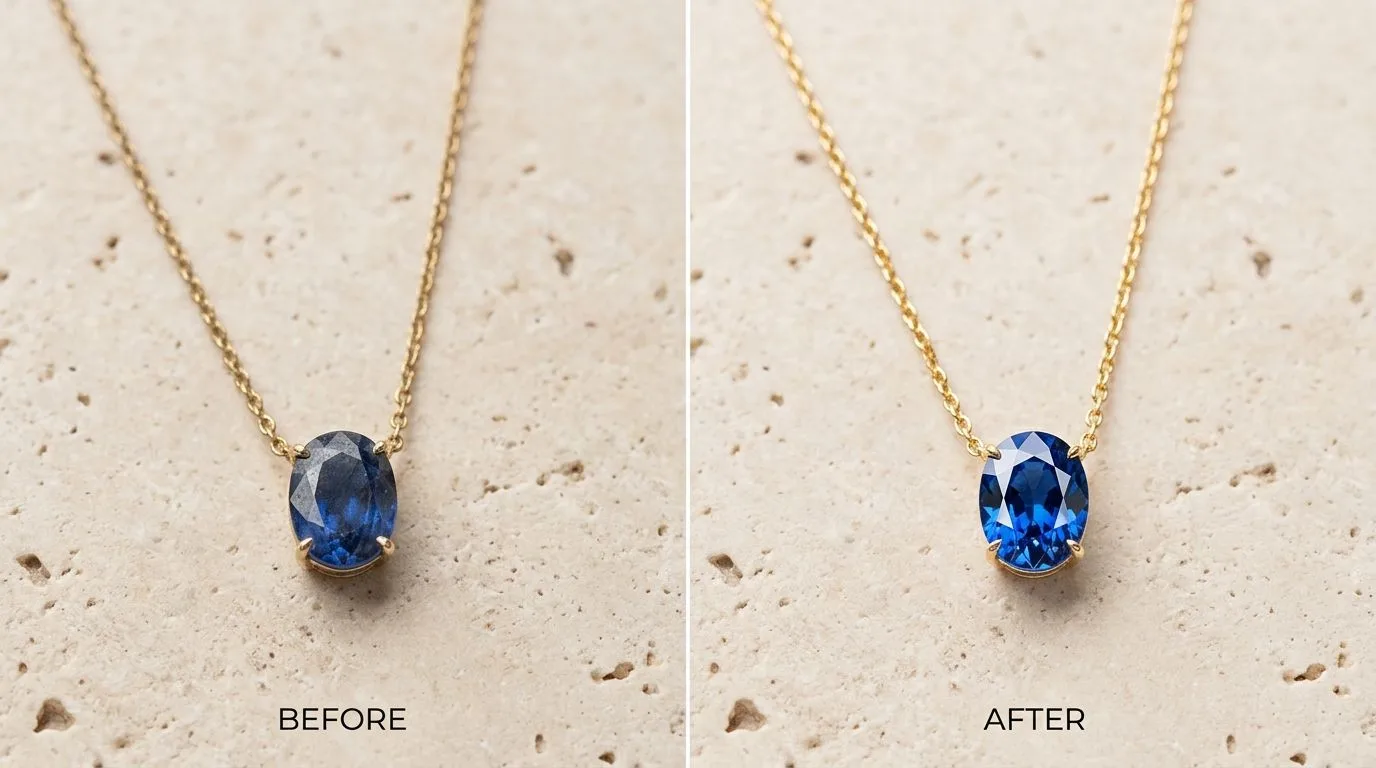
What You'll Need for Professional Necklace Retouching
Great retouching starts with a great source file. Before you open any software, ensure your setup is professional. Don't try to salvage a bad photo in post-production; get the shot 90% right in camera.
Software:
- Adobe Lightroom Classic: For RAW file processing, batch adjustments, and cataloging.
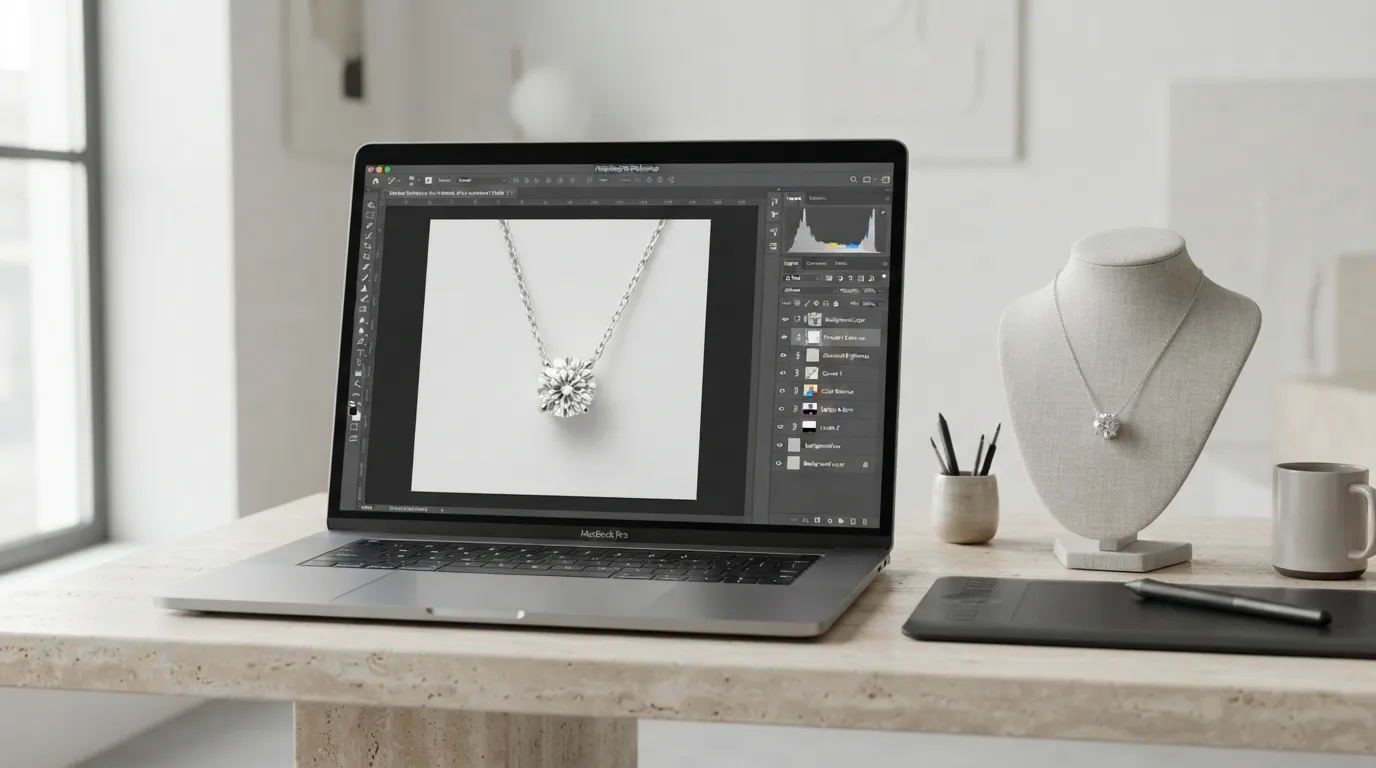
- Adobe Photoshop: The industry standard for detailed, non-destructive retouching. You'll primarily use Layers, Masks, the Pen Tool, Clone Stamp, and Healing Brush.
Hardware:
- A Calibrated Monitor: This is non-negotiable. An uncalibrated screen means you're guessing at colors. Aim for the sRGB / IEC 61966-2-1 standard that ecommerce platforms render in, and use a hardware calibrator like a Datacolor SpyderX or Calibrite ColorChecker. Your customers are viewing on calibrated iPhones; your editing environment must be just as accurate.
- A Graphics Tablet: A Wacom Intuos or similar tablet makes precise pathing, masking, and brushing feel natural. Retouching a delicate chain with a mouse is a recipe for frustration and carpal tunnel.
The Source Photograph:
- Format: Shoot in RAW (.CR2, .NEF, .ARW). This captures the maximum amount of data, giving you flexibility in editing white balance, exposure, and color without degrading quality.
- Lighting: The photo should be shot with soft, diffused light to minimize harsh reflections and deep shadows. A typical setup is a key light at 45 degrees and a fill card or second light to soften shadows.
- Focus: Use focus stacking for complex pieces to ensure the entire necklace, from clasp to pendant, is tack sharp. A shallow depth of field might look artistic, but for a product shot, clarity is key. Aperture settings of f/11 to f/16 are common.
Before You Start: Prep for a Flawless Edit
Avoid these common mistakes that create more work and compromise your final image quality.
-
Don't Work Destructively. Never, ever edit your original background layer. The first thing you should do in Photoshop is duplicate your layer (
Cmd/Ctrl + J). All your edits—cloning, healing, color adjustments—should happen on new, separate layers. This allows you to go back and change any step without starting over. -
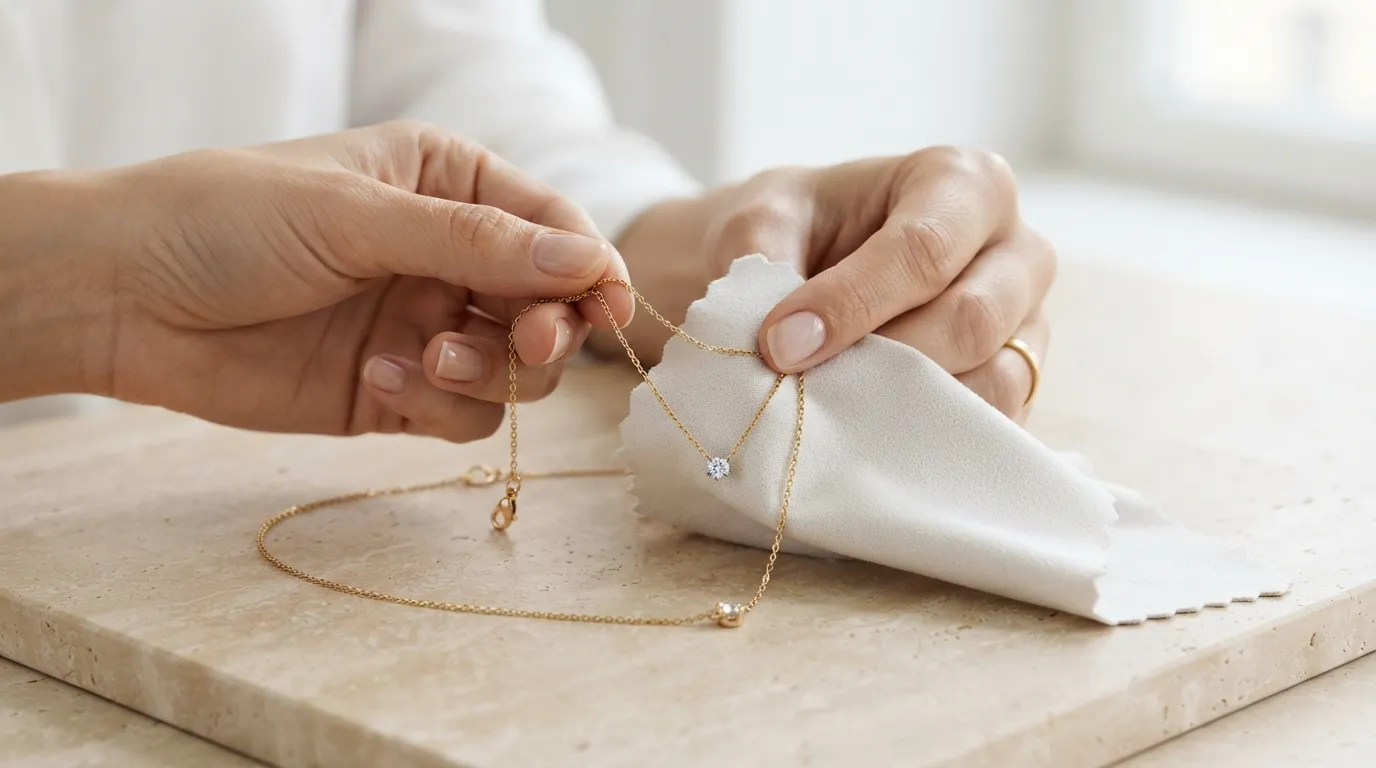
Clean the Piece Physically. Photoshop is for removing microscopic dust, not fingerprints and smudges. Wear cotton or nitrile gloves when handling the jewelry. Use a microfiber cloth and a rocket blower to remove as much dust as possible before you even take the picture. Every minute spent cleaning the piece in real life saves ten minutes of tedious cloning in Photoshop.
-
Establish Your White Point. If you shot on a white background, it's probably not pure white (#FFFFFF). In your RAW editor (Lightroom or Camera Raw), use the white balance dropper tool on a neutral gray or white part of your background to set an accurate white balance. This ensures your 18k gold doesn't look like 14k, and your platinum doesn't have a blue cast.
The 10-Step Professional Necklace Retouching Workflow
This is the exact workflow used by professional retouchers for high-end jewelry brands. We'll use the example of an 18-inch sterling silver box chain with a small sapphire pendant, shot on a white seamless background.
-
Step 1: RAW Processing & Lens Correction. Open your RAW file in Adobe Camera Raw or Lightroom. Make global adjustments first. Correct exposure, slightly increase contrast, and maybe lift shadows to see detail. Apply lens correction profiles to remove any distortion or vignetting from your lens. Set your white balance. Sync these settings across all photos from the same shoot for consistency. Export as a 16-bit TIFF to retain maximum data for Photoshop.
-
Step 2: Isolate the Necklace (Pathing). In Photoshop, select the Pen Tool (P). Meticulously trace around the entire necklace. For the chain, click and drag to create curves that match the links. This is the most time-consuming but most important step. Once the path is complete, open the Paths panel, save the path, and then
Cmd/Ctrl + Clickon the path thumbnail to turn it into a selection. With the selection active, click the Layer Mask icon to perfectly isolate the necklace on its own layer. -
Step 3: Clean the Background. Create a new layer below your masked necklace layer. Fill it with pure white (#FFFFFF) or your brand's standard background color. Your necklace is now floating on a perfectly clean, consistent background, essential for e-commerce marketplaces like Amazon and for creating a uniform look on your Shopify grid.
-
Step 4: Dust & Blemish Removal. Create a new empty layer above your necklace layer. Select the Spot Healing Brush or Clone Stamp Tool (S). Zoom in to 200-300% and scan the entire piece. Click on tiny dust specs, fibers, and imperfections. For the Clone Stamp, make sure your sample setting is 'Current & Below' so you're working non-destructively on the empty layer.
-
Step 5: Metal Polishing & Scratch Removal. This is where pros separate themselves. For minor scratches on the silver chain, the Healing Brush on your 'dust & blemish' layer works well. For larger surfaces or to even out reflections, use frequency separation or a simpler dodge and burn. Create two new 'Curves' adjustment layers. Invert the mask on both. Name one 'Dodge' and one 'Burn'. Pull the curve up for Dodge (lighten) and down for Burn (darken). Using a soft brush with flow set to 1-3%, paint with white on the masks to selectively lighten highlights and darken shadows on the metal, giving it dimension and polish.
-
Step 6: Gemstone Enhancement. Create a new layer and set its blend mode to 'Color Dodge' or 'Overlay'. Select a soft brush with a very low flow (1-5%). Sample a bright color from the sapphire and gently paint over the facets to enhance their sparkle. Create another 'Hue/Saturation' adjustment layer, clip it to the necklace layer, and mask it to affect only the sapphire. Subtly increase the saturation to make the color pop without looking fake.
-
Step 7: Color Correction & Consistency. The metal color must be accurate. Create a 'Selective Color' adjustment layer. Select 'Neutrals' or 'Blacks' from the dropdown and subtly adjust the sliders to remove any color cast. For our sterling silver piece, you might need to reduce a bit of yellow. If you have a reference shot of the exact piece, keep it open on a second monitor to match the color perfectly.
-
Step 8: Shape & Symmetry Correction. Sometimes a chain doesn't lay perfectly flat. Select your necklace layer (not the mask) and go to
Filter > Liquify. Use the Forward Warp Tool with a small brush size to gently nudge links into a more pleasing, symmetrical arc. Use this tool sparingly; major changes will look distorted. -
Step 9: Create Realistic Shadows. A floating necklace looks fake. Create a new layer between your background and necklace layers. Use a large, soft, black brush with low opacity (10-20%) to paint in a soft contact shadow directly underneath the pendant and parts of the chain. Create another layer for the main drop shadow.
Cmd/Ctrl + Clickyour necklace layer mask to load the selection, fill it with black on the new layer, and then apply a Gaussian Blur. Lower the layer opacity to 15-30%. The shadow should be subtle. -
Step 10: Final Sharpening & Export. Create a merged layer of all your work at the very top (
Cmd+Opt+Shift+EorCtrl+Alt+Shift+E). Go toFilter > Other > High Pass. Set the radius to 1.0-2.5 pixels. Click OK. Change this layer's blend mode to 'Linear Light' or 'Overlay'. This sharpens only the edges. Add a layer mask to hide the effect from the soft background. Finally, export for web (File > Export > Save for Web (Legacy)). Choose JPEG, quality 70-80, and check 'Convert to sRGB'. Resize to your website's specifications, like 2048x2048 pixels.
Common Necklace Retouching Mistakes (and How to Fix Them)
Even experienced designers make these errors. A great retouch is one you don't notice. Avoid these tells.
| Mistake | Why It's Bad | The Fix |
|---|---|---|
| Over-softening Metal | Using blur tools to hide scratches makes metal look like plastic. It removes the crisp reflections that signal quality. | Use frequency separation or careful dodge and burn. This allows you to smooth color and tone without destroying the underlying texture. |
| Unrealistic 'Glow' Effects | Adding a generic outer glow or a hard, black drop shadow makes the product look cheap and unprofessional. | Build shadows in layers. A soft, diffuse contact shadow and a separate, even softer drop shadow create depth. Shadows are never pure black; use a dark gray and lower the opacity. |
| Inconsistent White Balance | If one silver necklace looks warm and the next looks cool, your brand appears inconsistent and customers lose trust. | Shoot with a gray card in your first frame. Use the white balance dropper on this card in Lightroom and sync the setting across all photos from that session. |
| Leaving Distracting Reflections | Highly polished metals will reflect the camera, the photographer, and the room. This distracts the customer. | Use the Clone Stamp tool on a new layer. Sample a clean, similar-toned area of the metal and carefully paint over the reflection. For complex reflections, this can be the most difficult part of the edit. |
| Ignoring the Clasp | Many retouchers focus only on the pendant, leaving the clasp and extender chain looking dusty or unpolished. | Treat the back of the necklace with the same care as the front. Zoom in and apply the same dust removal and polishing techniques to every single link and component. |
Pro Tips for Magazine-Quality Necklace Photos
Ready to elevate your images from standard e-commerce to editorial quality? These advanced techniques will get you there.
- Master the Pen Tool for Chains: For complex chains like a rope or figaro chain, don't try to path every single link. Create a smooth, flowing path that captures the overall shape. Then, use a layer mask with a soft brush to refine the edges and let the background show through the gaps. It's faster and looks more natural.
- Use Luminosity Masks: For ultimate control when dodging and burning, use luminosity masks. These automatically create selections based on the brightness values in your image. This allows you to, for example, brighten only the brightest highlights on a diamond without affecting the mid-tones, making it sparkle intensely.
- Create a Custom 'Sparkle' Brush: In the Brush panel, create a new brush. Use a hard-edged, small brush tip and in 'Shape Dynamics', turn up 'Size Jitter' and 'Angle Jitter'. In 'Scattering', check 'Both Axes' and increase the count. Now you can paint on a few tiny, star-like glints on gemstone facets or sharp metal edges on a new layer set to 'Color Dodge'.
- Record a Photoshop Action: If you retouch dozens of necklaces on the same background, record your workflow as a Photoshop Action. This can automate steps like creating your layer structure (Dodge, Burn, Dust, Shadow layers), saving you clicks on every single image.
How to Retouch a Necklace in 60 Seconds with Hylo
The professional 10-step manual workflow is powerful, but it takes 20-60 minutes per photo. For a brand with hundreds of SKUs, that's not scalable. This is where AI can replace the most repetitive parts of the process.
With Hylo, you can achieve a commercial-grade result in under a minute. Here's how it maps to the manual workflow:
- Upload Your Photo: Start with a clean, well-lit photo of your necklace, even one from your iPhone.
- Instant Background Removal: Hylo's
AI Photoshootautomatically and precisely removes the background, equivalent to the manual Pen Tool pathing in Step 2. - Apply a Professional Scene: Instead of creating a plain white background, select a scene from our Creative Library—like 'Soft Marble' or 'Beige Travertine'. Our AI generates a new image of your necklace in that scene with hyper-realistic lighting and shadows. This replaces the manual background creation (Step 3) and shadow work (Step 9).
- One-Click AI Retouch: Use our
AI Retouchtool. It automatically identifies and removes dust, small scratches, and fingerprints from your piece. This automates the tedious work of Step 4 and parts of Step 5. - Brand Consistency with Brand Kit: For color accuracy (Step 7), Hylo's
Brand Kitcan analyze your reference images to ensure your metals and gemstones always match your real-life products. It ensures every photo has the same lighting profile and color temperature.
While Photoshop still offers more granular control for complex repairs or artistic reshaping (Step 8), Hylo's AI Photoshoot and AI Retouch can execute 90% of the commercial retouching workflow instantly. This frees you from tedious pixel-level work to focus on creative direction and growing your brand.
Questions Jewelry Brands Ask About Necklace Retouching
How do you retouch a necklace on a model? The process is similar, but adds a new dimension: skin retouching. You'll need to perform all the steps for the necklace itself, but also do light skin work. This includes removing blemishes, evening out skin tone (using frequency separation), and ensuring the light on the model looks consistent with the light on the jewelry. The key is subtlety; the skin should look real, not like plastic.
What's the best way to handle highly reflective or pavé-set necklaces? For highly reflective pieces like a solid gold collar, the magic is in the photography, not the retouching. Use large diffusion panels and black cards (to add contrast) to control the reflections in-camera. In Photoshop, your job is to clean up these controlled reflections, not create new ones. For pavé, focus stacking is essential to get all the tiny stones in focus. In retouching, use a sharpening layer masked specifically to the pavé area to make the stones pop, and a 'Color Dodge' layer to add tiny glints to a few of the stones.
Can I just use an app on my phone to retouch my necklace photos? Apps like Photoroom or Canva are great for basic background removal and adding text. However, they lack the sophisticated tools for professional jewelry retouching. They can't perform detailed dust removal, polish metals, or create nuanced shadows. For a simple social media post, they might suffice. For your main product images on Shopify or Amazon, the lack of detail will be apparent and can affect customer perception of your brand's quality.