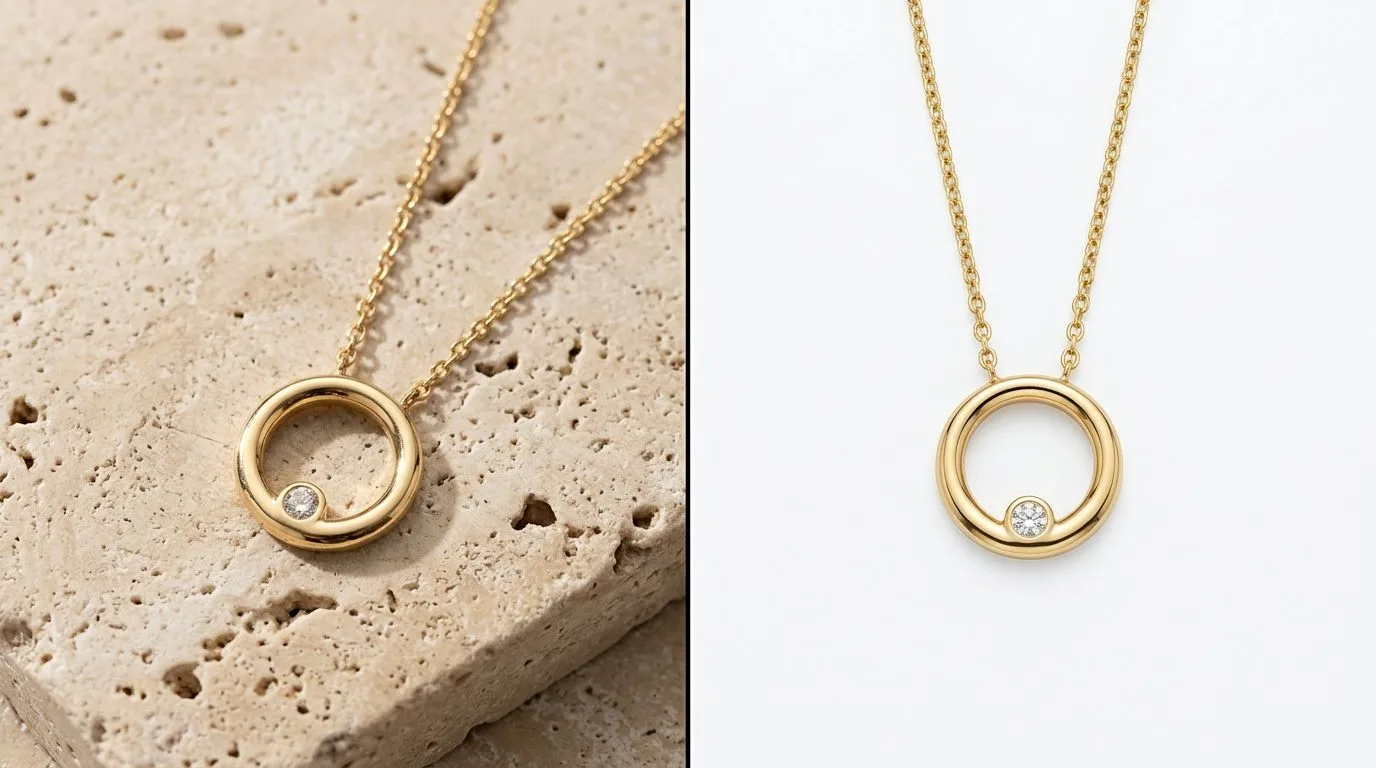
What You'll Need for Manual Background Removal
Before you open any software, success starts with the source image. A sharp, well-lit photograph makes background removal ten times easier. A blurry photo with a busy background is a recipe for a frustrating afternoon and a mediocre result.
Here’s your toolkit for a professional manual workflow:
- A High-Quality Source Photo: Shot with a DSLR or modern smartphone camera. For a 1ct solitaire ring, typical settings would be f/11 to keep the entire piece in focus, a shutter speed of 1/125s, and ISO 100 to minimize noise. The file should be a high-resolution JPG or, ideally, a RAW file for maximum editing flexibility.
- Editing Software: Adobe Photoshop is the industry standard for a reason. Its Pen Tool is unmatched for creating the precise, clean paths required for jewelry. While apps like Canva or Photoroom offer one-click removal, they lack the fine control needed for professional results on complex pieces.
- Precise Input Device: A standard mouse will work, but for extensive work, a drawing tablet (like a Wacom Intuos) provides superior ergonomic control for tracing intricate shapes and painting natural shadows.
- A Color-Calibrated Monitor: You need to trust that the #F5F5F5 light gray you see is what your customers will see. Monitors can vary wildly in color and brightness. A calibration tool like a Datacolor Spyder or Calibrite ColorChecker is a one-time investment in brand consistency.
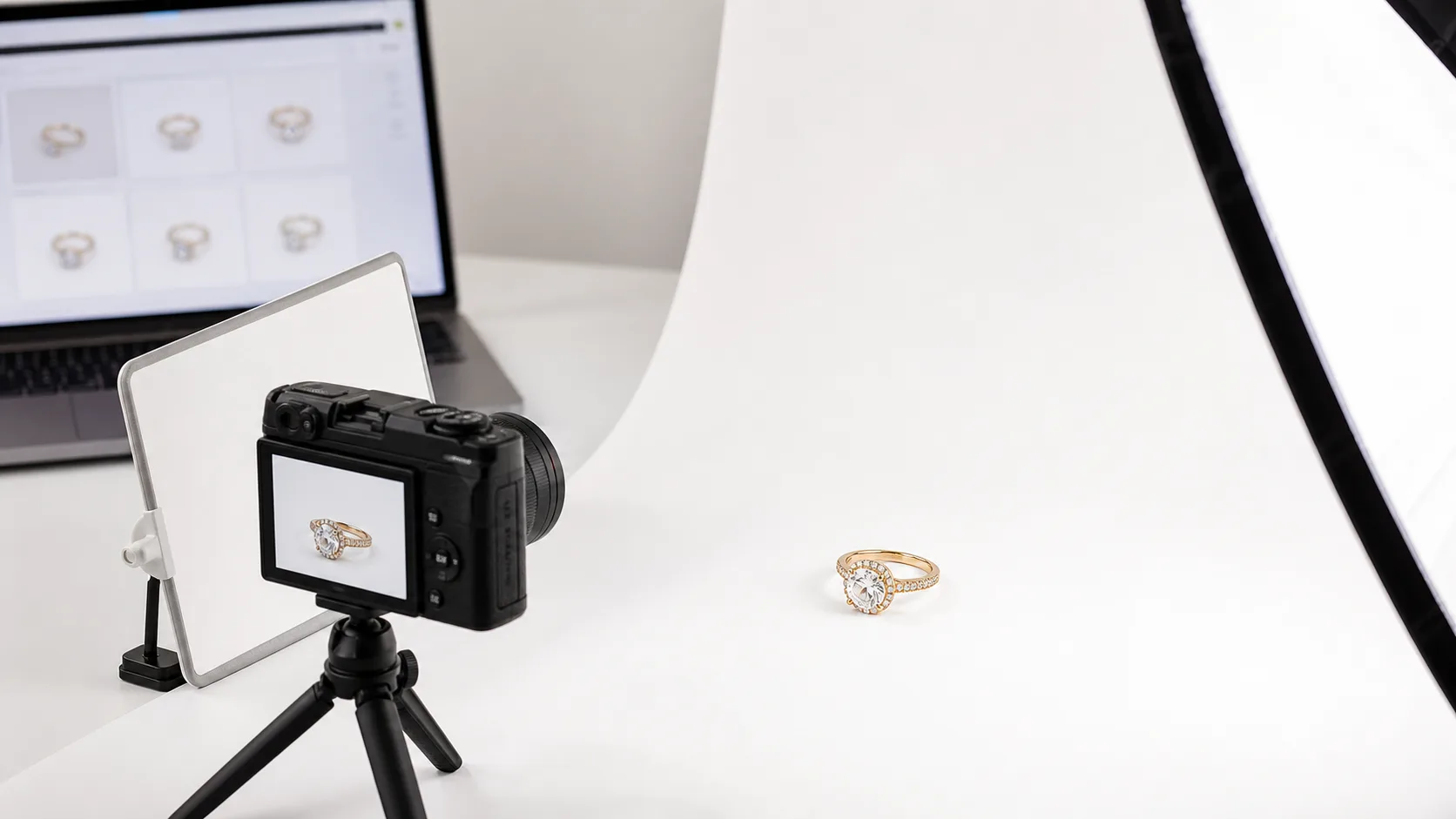
- A Simple Shooting Surface: When taking the original photo, place your jewelry on a plain, non-reflective surface that contrasts with the piece. A sheet of gray or black cardstock is perfect. This gives selection tools a clear edge to follow.
Before You Start: Etsy's Unspoken Rules
Before you spend hours editing, let's clear up two common misconceptions that trip up even experienced sellers.
-
"Etsy requires a pure white background." This is false. While a clean, neutral background is highly recommended for your primary thumbnail image to ensure it stands out in search results, it doesn't have to be pure #FFFFFF. In fact, many top sellers use a light gray (#F5F5F5) or a subtle texture. Your other nine photo slots should be filled with lifestyle, on-model, and detail shots on various backgrounds to tell a complete story.
-
"Any background remover tool will work." This is dangerous for jewelry brands. General-purpose AI tools are trained on a wide array of objects—cars, clothes, furniture. They often struggle with the unique challenges of jewelry: the negative space inside a ring band, the fine links of a cable chain, the transparency of a gemstone, and the complex reflections on polished metal. Using a generic tool can result in jagged edges, blurry halos, or filled-in details that cheapen your product's appearance.
One critical prep step: always shoot in the highest resolution your camera allows. Removing the background from a low-resolution, heavily compressed JPG will magnify every imperfection, resulting in a pixelated, unprofessional final image.
The Photoshop Workflow for Flawless Jewelry Cutouts
This is the definitive, non-destructive method for achieving pixel-perfect cutouts. It takes practice, but the results are unmatched. We'll use the example of a silver pendant on a fine chain.
-
Prepare Your Workspace: Open your image in Photoshop. In the Layers panel, right-click the 'Background' layer and select 'Duplicate Layer'. Name it 'Working' or 'Pendant'. This preserves your original image. Hide the original 'Background' layer by clicking the eye icon next to it.
-
Select the Pen Tool (P): The Pen Tool is your most important instrument. Unlike the Magic Wand or Quick Selection tools, which rely on pixels, the Pen Tool creates vector paths based on mathematical points. This gives you perfectly smooth curves and sharp corners, essential for hard-surfaced jewelry.
-
Trace the Outer Edge: Zoom in to at least 200%. Start at a clear point on the pendant's edge. Click to create your first anchor point. Move along the edge and click again to create a second point. For a curve, click and drag to pull out bezier handles that control the curve's shape. Continue tracing the entire outer edge of the pendant and chain.
-
Handle Interior Spaces: The bail of the pendant and the gaps between chain links create 'negative space'. After completing your main path, select the 'Subtract from shape' option in the Pen Tool's top menu. Now, trace the inside of the bail. This tells Photoshop to exclude this area from the final selection.
-
Convert Path to Selection: Go to the 'Paths' panel (Window > Paths). You should see your 'Work Path'. Hold Ctrl (Windows) or Cmd (Mac) and click on the path's thumbnail. You'll see the 'marching ants' of a selection appear around your jewelry.
-
Refine the Selection: Go to
Select > Select and Mask.... This opens a dedicated workspace. For jewelry, a tiny bit of feathering can help it look more natural. Set 'Feather' to 0.3-0.5 pixels. You can also use the 'Shift Edge' slider to contract the selection by a pixel or two if you notice a slight halo from the original background. -
Create a Layer Mask: Click 'OK' to exit Select and Mask. With your selection still active, go to the Layers panel and click the 'Add layer mask' icon (a rectangle with a circle in it). Your background will instantly disappear, replaced by a checkerboard pattern indicating transparency.
-
Add Your New Background: Create a new layer by clicking the '+' icon at the bottom of the Layers panel. Drag this new layer underneath your 'Pendant' layer. Select the Paint Bucket tool (G), choose your desired background color (e.g.,
#F5F5F5), and click anywhere on the canvas to fill the layer. -
Recreate a Realistic Shadow: This is the step that separates amateurs from pros. Create another new layer and place it between your jewelry and background layers. Name it 'Shadow'. Select a soft, round Brush (B) with 0% hardness. Set the brush color to black, the Opacity to 20%, and the Flow to 10%. Gently paint a small, soft shadow where the pendant would make contact with a surface. This grounds the object and gives it weight.
-
Export for Etsy: Go to
File > Export > Export As.... Choose JPG format, set the Quality to 80-90, and ensure the color space is sRGB. Most importantly, set the longest side of the image to at least 2700 pixels. This ensures it looks crisp and allows for Etsy's zoom feature to work effectively.
Common Mistakes and How to Fix Them
Even with the right workflow, small errors can compromise your final image. Here are the most common issues and their solutions.
| Mistake | The Problem | How to Fix It |
|---|---|---|
| The "Halo" Effect | A thin, bright fringe appears around your jewelry, left over from the original background. | In the Select and Mask workspace, use the Shift Edge slider to move the selection inward by -5% to -15%. This tightens the mask around the object, cutting off the fringe. |
| Jagged Edges | The outline of the jewelry looks pixelated or has sharp, unnatural angles. This is a classic sign of using the Magic Wand tool. | There's no quick fix. You must re-trace the object using the Pen Tool. The smooth vector paths it creates are the only way to get clean, professional edges on hard surfaces. |
| Losing Fine Chains | A delicate chain becomes a blurry mess or disappears entirely during selection. | This is an advanced fix. First, use the Pen Tool to trace the general shape. Then, on the layer mask, use a very small, hard-edged brush to manually paint the chain links back in (painting with white) or remove the gaps (painting with black). |
| The "Floating" Look | The jewelry looks pasted-on and fake because it lacks a shadow to ground it. | Never use Photoshop's default Drop Shadow layer style. Instead, manually paint a contact shadow on a separate layer beneath the object using a soft, low-opacity black brush. |
| Inconsistent Backgrounds | Your shop grid looks messy because one listing is on pure white, another on off-white, and a third on light gray. | Create a template file or Photoshop Action with your chosen background color's hex code. Or, even better, use a tool like Hylo's Brand Kit to save your exact background and apply it to every image with one click. |
Pro Tips for Standout Etsy Listings
Getting the background right is table stakes. Here's how to use it to create a premium, trustworthy brand presence.
-
Use Light Gray, Not Pure White: Pure white (#FFFFFF) can feel clinical and cause digital clipping on bright screens, blowing out the subtle highlights on your metal and gems. A soft light gray like
#F5F5F5is easier on the eyes, feels more luxurious, and allows the full tonal range of your piece to shine. Look at the top sellers in your category; you'll see this everywhere. -
Add a Subtle Gradient: A flat background can look, well, flat. Add a new layer on top of your background color, select the Gradient Tool (G), and choose a Radial Gradient from white to transparent. Click in the center of your image and drag outwards to create a subtle hotspot behind the jewelry. It adds depth and draws the eye.
-
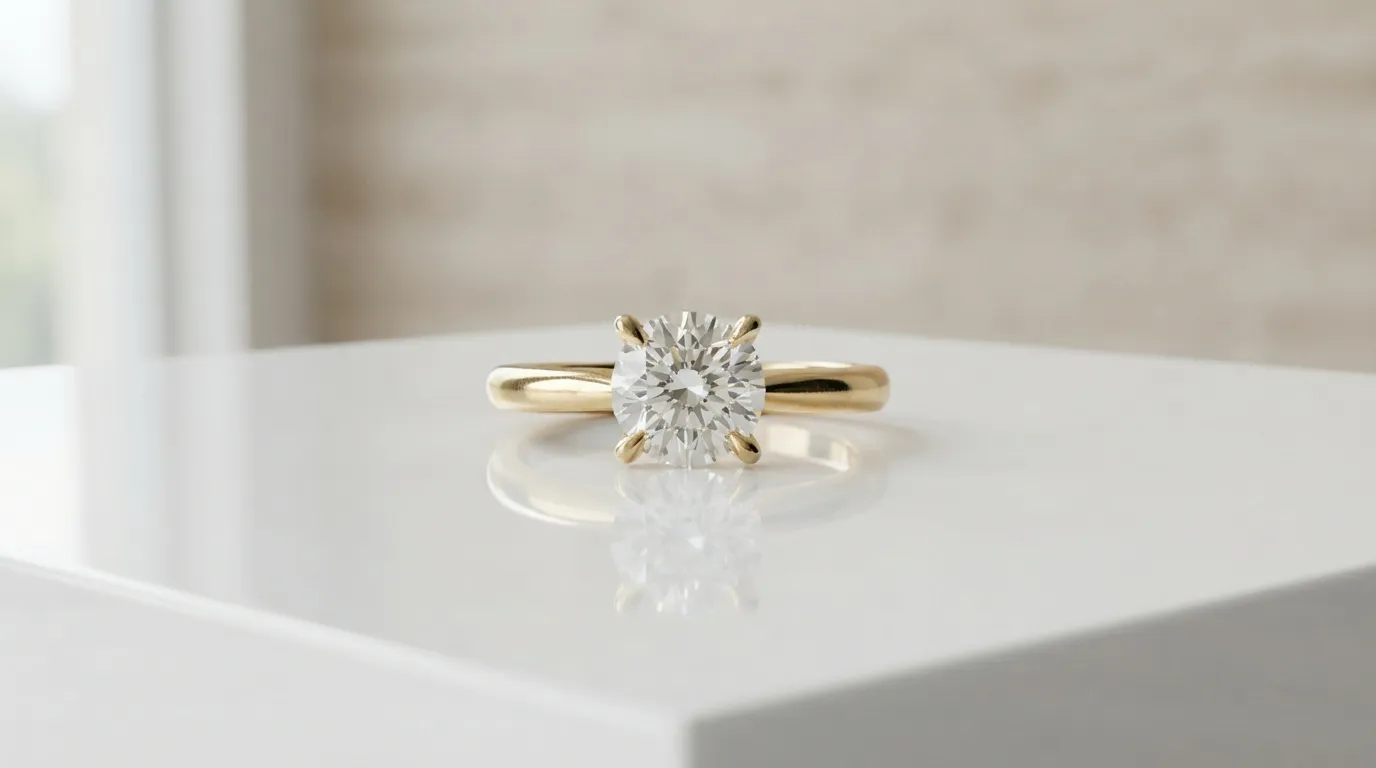
Keep Natural Reflections: If you shot your piece on a reflective white surface and captured a beautiful, soft reflection, don't remove it! When tracing with the Pen Tool, trace around the jewelry and its reflection. This creates a high-end catalog look that's impossible to fake and shows you're a professional.
-
Batch Your Workflow with Actions: If you have 20 new rings to edit, don't repeat the same steps 20 times. In Photoshop, record an Action (
Window > Actions) that creates the new background layer, adds a shadow layer, and resizes the canvas. Now you can run this action on every file after you've created the initial mask, saving hours of tedious work.
How to Remove Jewelry Backgrounds in 10 Seconds with Hylo
The manual Photoshop workflow provides ultimate control, but it's slow—often 10-20 minutes per image. For busy brand owners, that time is better spent on design or marketing. This is where AI provides a massive shortcut.
While general tools like Canva or Photoroom can handle simple shapes, Hylo is built specifically for the challenges of jewelry. Here's the 10-second workflow:
-
Upload Your Photo: Drag and drop any jewelry photo into Hylo. It can be a professional DSLR shot or a quick photo from your iPhone against your desk. The AI is designed to handle imperfect source images.
-
Instant Background Removal: The moment you upload, Hylo's
AI Retouchautomatically identifies the jewelry and performs a background removal. Our AI is trained on millions of images of fine chains, pavé settings, faceted stones, and polished metals. It understands how to preserve these details without creating the halos or artifacts common in other tools. -
Apply a Professional Background: Use
AI Photoshootto place your perfectly cut-out jewelry onto a new background. You can select a pre-built studio scene from ourCreative Library(like "Off-White Paper" or "Light Gray Concrete") or simply type a prompt to create a custom one, like "On a beige travertine slab, soft overhead light." -
Ensure Total Consistency: This is where you save the most time. Save your preferred background, lighting, and shadow style to your
Brand Kit. Now, for every subsequent product you upload, you can apply your brand's signature look with a single click. This ensures every listing in your Etsy shop is perfectly cohesive.
The manual method is still valuable for highly artistic composites. But for creating clean, consistent, and professional product photos for your Etsy listings, Hylo's AI reduces a 20-minute task to a 10-second one.
Questions Jewelry Brands Ask About Etsy Backgrounds
-
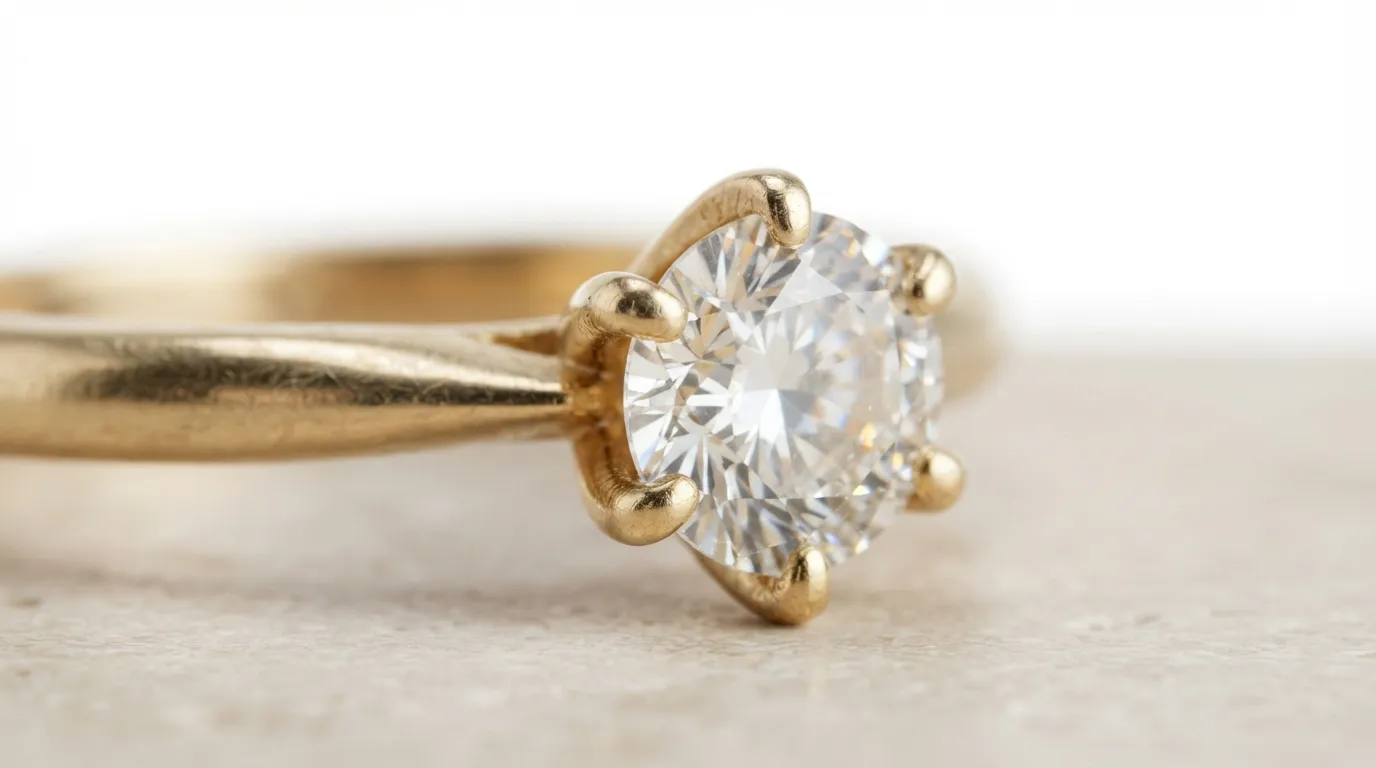
Should all my Etsy photos have the background removed? No. Your primary, or thumbnail, image should be a clean product shot on a neutral background. This is what shoppers see in a crowded search results page. However, your other 9 photo slots are crucial for building trust and driving the sale. Use them for on-model shots, lifestyle images showing the piece in a real-world context, a scale shot (e.g., next to a coin or on a hand), and macro shots of details like the clasp or stone setting.
-
Can I upload a PNG with a transparent background to Etsy? Yes, Etsy supports PNG files with transparency. When you upload a transparent PNG, Etsy will automatically display it on the website's default background color, which is a light gray. This can be a great strategy to ensure all your listings look consistent without having to manually add a background to every single image file.
-
Does removing the background affect my Etsy SEO? Indirectly, yes. Etsy's search algorithm considers user engagement, especially click-through rate (CTR). A clean, professional, and eye-catching main image will get more clicks from search results than a cluttered one. This higher CTR signals to Etsy that your listing is appealing, which can lead to a boost in search ranking over time. The image's file name (e.g.,
14k-gold-solitaire-diamond-ring.jpg) has a more direct impact on SEO.