
A disapproved image in Google Merchant Center means a product is ineligible for Google Shopping, and increasingly for the AI-driven shopping experiences that draw on the same feed. For jewelry sellers, image disapprovals are among the most common feed problems, and they are frustrating because the listing looks fine to a human, the rejection is about policy compliance, not whether the photo is attractive. This guide explains the disapprovals jewelry sellers hit most, why each happens, and how to fix them, including at catalog scale.
Google updates Merchant Center policies and the exact thresholds periodically, so confirm current requirements in Google's product image requirements before a large remediation. The categories of problem, however, are stable.
The most common jewelry image disapprovals
Promotional text and overlays are the number one cause. Google prohibits any promotional text, badges, or graphics overlaid on the product image, price, sale, free shipping, percentage off, and the like. Jewelry sellers often add these to make listings pop, and Merchant Center rejects them. The product image must show the product, and promotional messaging belongs in the listing's text fields.
Watermarks are a close second, and they catch out careful sellers. Many jewelry brands watermark images to deter copying, a reasonable instinct given how often product photos are stolen. But Merchant Center does not allow watermarks on product images, so a watermarked image is disapproved. You need a clean, watermark-free version for the feed.
Low resolution causes rejections when an image falls below the minimum, 100 x 100 pixels for general products and 250 x 250 pixels for apparel. These are floors, and for jewelry you want to be well above them so the piece is clearly visible and identifiable. Upscaling a tiny file does not help; you need a genuinely larger image.
Placeholder and generic images are disapproved because Google requires a real image of the specific product. A single solid colour, a no image available graphic, or a generic illustration that is not the actual piece will not pass. Each jewelry product needs an accurate image of that item.
Finally, images that do not clearly show the product, the piece too small, obscured, or lost in a busy scene, can be flagged because Merchant Center needs the product to be identifiable.
Why these rules exist
Merchant Center's image policies exist to keep Shopping results trustworthy and comparable. If sellers could plaster sale badges and watermarks over images, the results would become a noisy mess and buyers could be misled. Requiring a clean, real, adequately sized image of the actual product means shoppers see what they will get, and it means Google, and the AI surfaces fed by the same data, can identify products reliably. Understanding this helps you stay compliant: the image should be an honest, clear representation of the piece and nothing else.
Fixing rejections one at a time
For a handful of disapprovals, the process is direct. Open Merchant Center diagnostics and read the specific reason, do not guess. Remove any text, badges, logos, or watermarks. Confirm the resolution clears the minimum with comfortable margin and re-export from a high-resolution master if needed. Replace any placeholder with a real image of the piece. Make sure the product is clearly visible on a plain background. Then update the image and let Google re-review on its next cycle, typically a few days, and watch diagnostics to confirm it clears.
Fixing rejections at scale
A large catalog with systematic problems, every image watermarked, or many images with promotional overlays, is painful to fix by hand. The efficient route is to regenerate clean, compliant images rather than editing each one. Hylo's AI Photoshoot can produce consistent product images on plain backgrounds with no overlays, and AI Retouch can clean existing images, removing watermarks and distractions while keeping metal and stone colour accurate. Producing a compliant image set in one pass is far faster than manually editing hundreds of rejected files, and it gives you images that also satisfy marketplace main-image rules.
The watermark dilemma, and how to resolve it
The watermark rejection deserves special attention because it pits two reasonable instincts against each other. Jewelry product photos are among the most frequently stolen images online, and watermarking is the obvious defence. But Merchant Center, like the major marketplaces, prohibits watermarks on product images, so the very thing that protects your photo makes it ineligible for Shopping. Sellers often discover this only after a swathe of their catalog is disapproved, having watermarked everything as standard practice.
The resolution is to separate the two purposes. Maintain clean, watermark-free images for your feed and marketplace listings, where compliance is non-negotiable, and rely on other protections against theft: lower-resolution display copies on your own site, image-rights enforcement, and the simple reality that a watermark on a competitor's stolen image does not help your Shopping eligibility anyway. The image that earns you visibility has to be clean, so build your workflow around producing a clean master and treating watermarking, if you use it at all, as a separate step for non-feed contexts only.

Resolution: clearing the floor with room to spare
Google's minimums, 100 x 100 pixels for general products and 250 x 250 for apparel, are floors, not targets, and treating them as targets is a mistake for jewelry. A 250-pixel image of a ring is far too small for a buyer to judge a setting or for an AI surface to identify the piece confidently. The minimum is the threshold for acceptance, not the standard for performance. For jewelry, a primary image well into the thousands of pixels on the longest side gives buyers the detail they need and gives you headroom for the same image to serve marketplaces and zoom views.
Crucially, you cannot fix a low-resolution rejection by upscaling a small file, because upscaling adds pixels without adding detail and often produces a soft, artefact-laden result that still reads as poor quality. The real fix is a genuinely larger source image, which is why starting every piece from a high-resolution master matters. If your catalog has accumulated small images over the years, regenerating clean high-resolution versions is more reliable than trying to rescue tiny originals.

Reading the diagnostics correctly
A recurring source of wasted effort is fixing the wrong problem because the disapproval reason was never read carefully. Merchant Center diagnostics state the specific policy each disapproved item violates, and the fixes are different: a promotional-overlay rejection needs the text removed, a resolution rejection needs a larger image, a placeholder rejection needs a real product photo, and a "product not clearly shown" flag needs better composition. Guessing leads to re-editing an image for the wrong reason and seeing it disapproved again on the next cycle, doubling the turnaround time.
The disciplined approach is to export the list of disapproved items with their stated reasons, group them by cause, and fix each group with the appropriate remedy. Grouping also reveals systematic problems, if half your catalog is flagged for watermarks, that is a process issue to fix at the source, not an item-by-item chore. Reading the diagnostics turns a vague sense that "images are getting rejected" into a concrete, prioritised work list.
Turnaround and keeping the feed healthy
After you correct and resubmit an image, Google re-reviews it automatically on its next processing cycle, which typically takes a few days though timing varies. This lag is worth planning around: a wave of fixes submitted just before a major sales period may not all clear in time, so remediate well ahead of seasonal peaks rather than during them. Monitor diagnostics after resubmission to confirm each disapproval actually clears, since a fix that does not address the stated reason will simply be disapproved again.
Beyond fixing current rejections, the goal is a feed that stays healthy. Build compliance into your image production so new pieces enter the feed clean, no overlays, adequate resolution, plain background, real product, rather than being disapproved and remediated after the fact. A feed that is compliant by default frees you from the constant catch-up of fixing rejections and keeps your full catalog eligible for Shopping and the AI surfaces it feeds.
Background and "product not clearly shown" flags
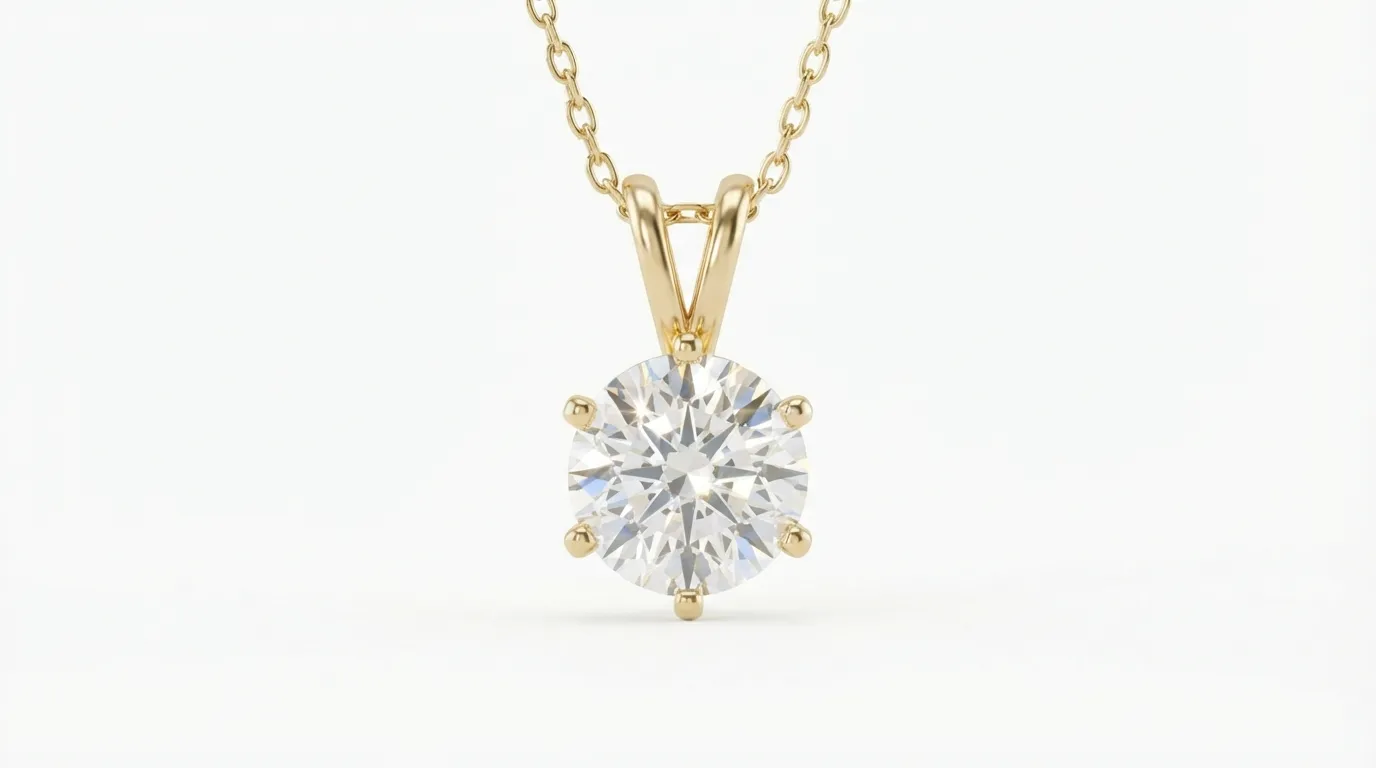
A subtler disapproval category is the image where the product is not clearly identifiable, and for jewelry this is more common than sellers expect. A delicate chain photographed against a busy textured surface, a ring lost in a moody low-key scene, or a pendant so small in the frame that it reads as a speck can all trip this flag, because Merchant Center needs to confirm the image actually shows the product being sold. The fix is to present the piece prominently on a plain, uncluttered background where it is unmistakably the subject of the image. Merchant Center is less strict than Amazon about the background being pure white, but it does require the product to be clearly visible, and a clean light background is the safest way to guarantee that.
This is also where compliance and conversion align. An image that clearly shows the piece on a plain background is more likely to pass review and is also easier for a buyer scanning Shopping results to understand at a glance. The lifestyle and styled shots that brands love have their place, but not as the feed's primary image, where clarity has to win.
Building a compliance checklist into production
The most reliable way to stop fighting rejections is to bake the rules into how images are made, so non-compliant images never enter the feed. A simple production checklist covers most of it: no promotional text, badges, or price overlays on the image; no watermark on the feed version; resolution comfortably above the minimum and ideally into the thousands of pixels for jewelry; a real photograph or accurate generated image of the specific piece, never a placeholder; and the product shown clearly on a plain background. Running every new image through this checklist before it reaches the feed converts compliance from a reactive clean-up into a built-in standard.
For sellers with existing catalogs full of legacy problems, the same checklist doubles as a remediation spec. Rather than editing each rejected file in isolation, define the compliant target once and regenerate or retouch images to meet it in batches, which is both faster and more consistent than ad hoc fixes. The end state is a catalog where every image meets one clear standard, eligible across Shopping, marketplaces, and AI surfaces alike.
The bonus: compliance helps everywhere
A clean, accurate, adequately sized, overlay-free image on a plain background does more than clear a Merchant Center disapproval. It is the same image marketplaces like Amazon require, and it is the kind of unambiguous primary image that AI shopping surfaces can identify. Fixing your feed images to Google's standard tends to fix your eligibility across multiple channels at once, which makes the remediation worth more than just reinstating Shopping.
Try Hylo free and generate Merchant Center-compliant jewelry images at scale.