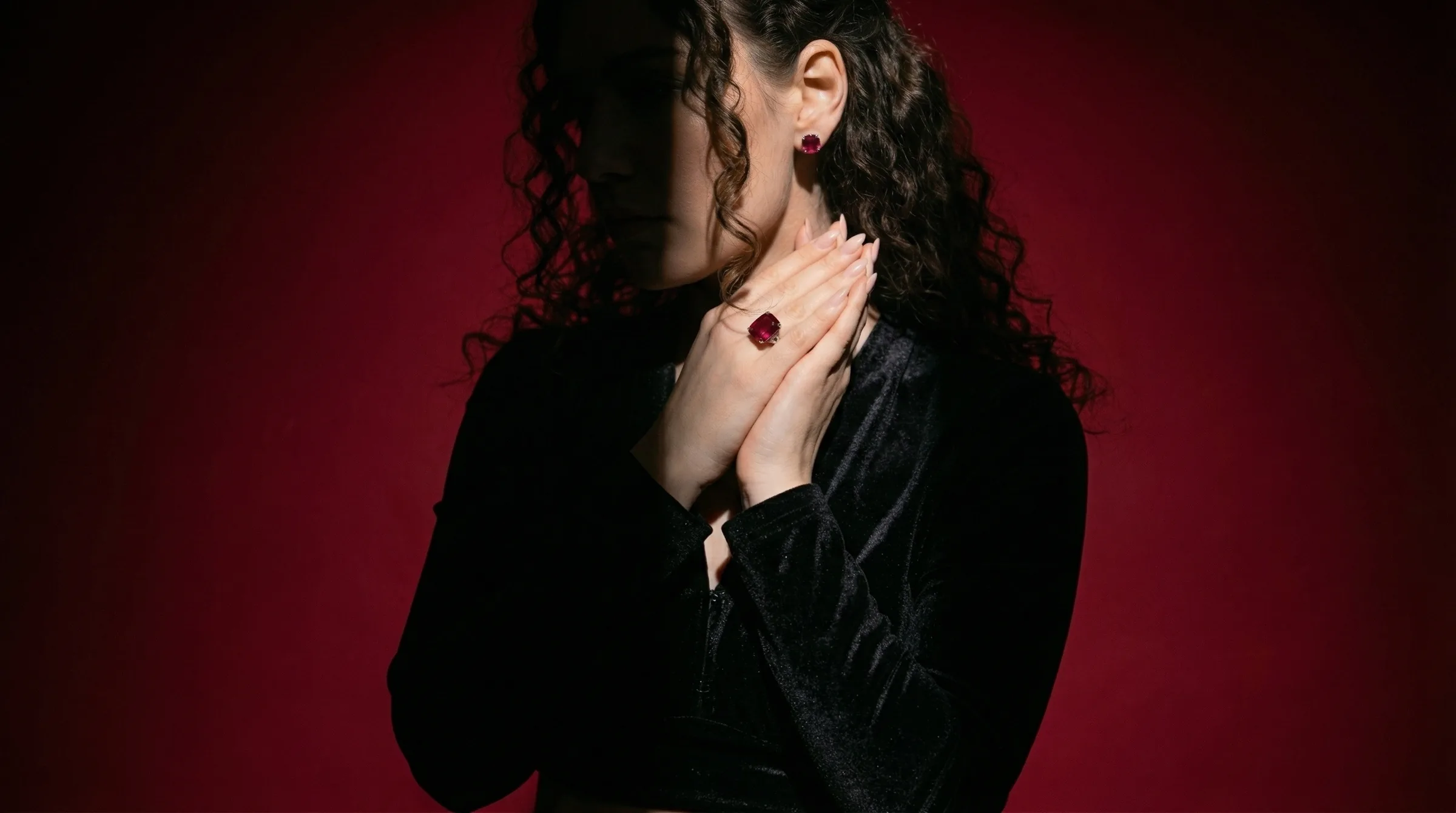
Why Most AI Jewelry Photoshoots Look Off-Brand (And How Hylo Fixes It)
Most AI jewelry generators treat every photo as an isolated prompt. You upload a ring at 10:00 AM and get a cool-toned Scandinavian studio with a fair-skinned model in white linen. Ten minutes later, you upload the matching pendant from the same capsule and get a moody crimson velvet background, harsh tungsten rim light, and a completely different face. Put those two images side by side on a Shopify collection page and shoppers immediately sense something is off.
A recognizable jewelry brand comes down to five repeatable visual variables:
- Color palette — the exact hex shades appearing in silk drapes, painted arches, velvet risers, and wardrobe accents.
- Surface and lighting architecture — whether your pieces sit on warm travertine in late-afternoon sunlight or black acrylic under studio strobes.
- Model casting — consistent skin tone, regional heritage, hair styling, and makeup undertones across every worn shot.
- Framing and crop ratios — matching
4:5collection cards,1:1macro details, and9:16story vertical frames. - Custom art direction notes — the subtle micro-rules (no heavy props, relaxed hand posture, soft golden-hour shadows) that separate a generic render from your label's signature look.
In Hylo, you do not re-type those five variables for every SKU. Instead, you configure them once at the brand and brief level inside the Multi-Product Photoshoot Studio and propagate them across up to 5 products and 15 shots in a single batch.
If you remember only one control from this guide, make it the Brand Color toggle switch pinned at the bottom of your photoshoot brief (highlighted in red in the hero image above and in Step 4 below). Flipping that single switch ON takes your saved Brand Kit palette and locks it across every ring, necklace, and earring in your brief at once — tinting silk wardrobe, velvet risers, and architectural backdrops to your exact brand hex while keeping your 18K gold and gemstones 100% true to life.
The Running Example: Meet Aurelia Jaipur (3-Piece Emerald & 18K Gold Capsule)
To make every step concrete, we will build a real 3-product campaign from scratch for a fictional Demi-Fine jewelry label called Aurelia Jaipur.
Here is the exact brand specification we want our shoot to follow:
- Brand Name: Aurelia Jaipur
- Signature Palette:
- Primary (
#0F593D): Deep Emerald — rich jewel-toned silk and background accents that echo the stone cut. - Secondary (
#C8A24B): Champagne Gold — warm brushed brass and sandstone midtones. - Accent (
#F5EFE6): Warm Ivory Cream — unbleached linen and travertine highlights.
- Primary (
- Brand Voice & Lighting Direction: Modern Jaipur heritage — sunlit architectural stone, rich emerald silk drapes, warm afternoon courtyard light, and relaxed contemporary Indian casting.
- The 3 Raw Input Photos: An 18K bezel-set emerald solitaire ring, an 18K emerald drop pendant necklace, and a pair of 18K sculpted ribbed gold huggie hoops — each photographed on a wooden office desk with an iPhone under ordinary window light.


Drag the comparison slider below to see how our raw desk snapshot of the 18K Emerald Solitaire Ring transforms into an on-brand Aurelia Jaipur editorial portrait with #0F593D emerald silk and warm golden-hour sunlight — while keeping the bezel setting, stone facet geometry, and band thickness intact:

Now let's walk through the exact 6 steps on both Desktop and Mobile to produce this entire 3-product campaign in under ten minutes.
Step 1: Set Up Your Brand Kit Palette & Brand Voice Once
Before uploading a single jewelry photo, save your brand's visual identity in your Brand Kit. Hylo stores up to 6 hex swatches, your primary market (India, Global, or Mixed), your product categories, and your default model profile so every future photoshoot starts with your palette pre-loaded.
Step 1 on Desktop: In-Studio Brand Kit Modal
- Open Brand Kit from the left sidebar, or click Edit next to Brand Color at the bottom of the left brief column inside the Multi-Product Photoshoot Studio to open the Brand Kit modal directly over your studio canvas.
- Enter your Brand Name (
Aurelia Jaipur) and Website (https://aureliajaipur.com), then click Scan. Hylo inspects your live storefront stylesheet and extracts your primary brand hexes automatically. - Refine or add up to 6 swatches in Brand Palette (3/6). For Aurelia Jaipur, we lock
#0F593D(Deep Emerald) as ACTIVE,#C8A24B(Champagne Gold) as secondary, and#F5EFE6(Warm Ivory Cream) as our third swatch, or tap one of the Quick Presets (Deep Emerald,Champagne,Warm Ivory). - Click Save & Apply to persist your palette and immediately activate
#0F593Dacross your current photoshoot brief.

Step 1 on Mobile: Full Brand Kit Page
- Tap the menu icon in the top bar and select Brand Kit.
- Paste your storefront URL into Website URL and tap Scan Colors, or tap
+ ADD COLORinside Brand Colors (3/6) to enter#0F593D,#C8A24B, and#F5EFE6in slotsC1,C2, andC3. - Add a concise Brand Voice note ("Modern Jaipur heritage — rich emerald silk, warm champagne gold, sunlit architectural stone, relaxed contemporary Indian casting") and tap Save Changes.

If your live Shopify theme uses neutral black-and-white UI buttons (#000000 and #FFFFFF), Scan Colors will pull those UI neutrals first. Replace pure black or white in C1 with your packaging, velvet box, or campaign signature tone (like #0F593D) so Hylo's background and wardrobe tinting has a rich chromatic anchor.
Step 2: Build a Multi-Product Brief Instead of Shooting One Piece at a Time
The single biggest workflow upgrade for brand consistency is shooting your capsule together inside the Multi-Product Photoshoot Studio. When you stage your ring, necklace, and earrings in one brief, you can see their shot recipes stacked together, toggle brand color across all of them simultaneously, and generate the entire drop in one parallel batch.
Step 2 on Desktop: Multi-Product Upload & Category Detection
- Navigate to Product Photoshoot. The Choose a product image modal opens automatically.
- Switch to the Upload tab and drag all three raw desk photos (
18K-Emerald-Solitaire-Ring.png,18K-Emerald-Drop-Necklace.png, and18K-Gold-Ribbed-Hoops.png) into the dropzone at once, then click Add 3 products. - Look at the YOUR BRIEF column on the left: Hylo uploads your raw photos and runs automatic category detection on each slot — tagging Product 1 as Ring, Product 2 as Pendant, and Product 3 as Earring/Stud.
- As you click between Product 1, Product 2, and Product 3 in the left column, the style grid on the right automatically filters to templates engineered for that specific jewelry category (hand-worn poses for rings, neckline and collarbone framing for pendants, ear-profile angles for hoops).

Step 2 on Mobile: Inline Accordion Brief
- Open Photoshoot on mobile and select your 3 raw photos in the multi-pick tray, then tap Add 3 products.
- Hylo's mobile brief uses a single-column accordion layout so you never have to juggle multiple tabs: your active product expands inline with its picked shots (
PICKED · 2), the live STYLE grid sits directly underneath, and the sticky Brand Color bar stays pinned right aboveNext: Product 2 →.

Do not apply Instagram filters, warm color grading, or aggressive background erasing before uploading to Hylo. Shoot on a plain wooden desk, paper sheet, or Bust in diffused natural window light (5000K–5500K), wipe fingerprints off the gold and emerald table facets, and let Hylo's jewelry lighting setup handle the studio relighting.
Step 3: Anchor Your Visual World with a Curated Theme
If you pick random individual styles — say, a neon street-crossing editorial for your ring, a dark botanical forest for your pendant, and a stark white catalog pedestal for your hoops — even a shared hex color won't make them look like the same photoshoot.
That is why Hylo organizes its library into Themes & Styles. A Theme (marked with a layered stack badge in the top-right corner of the card) is a pre-art-directed visual world containing multiple coordinated child styles — model portraits, macro close-ups, and architectural surface shots that all share the same lighting temperature, shadow softness, and prop material language.
Step 3 on Desktop: Theme Browse Panel
- Above the right-hand grid, keep the segmented toggle set to Themes & Styles (rather than
Styles only). - Click a Theme card that matches your brand's architectural mood. The Theme Browse Panel slides over from the left edge of the grid, displaying every coordinated style inside that theme that fits your active product's category.
- Click 2 to 3 child styles (for example, one worn model shot, one travertine pedestal still life, and one macro detail) to add them to Product 1, then click Next: Product 2 → in the brief footer and pick sibling styles from the same family for your necklace and hoops.

Step 3 on Mobile: Theme Browse Bottom Sheet
- Scroll to the STYLE grid inside your expanded product card and tap any Theme card with the stack icon.
- Hylo opens the Theme Browse Sheet showing the theme's description and category-matched child styles in a 2-column grid. Tap each style to add it to your brief, then tap
×to return to your product list.

Step 4: Flip the "Magic Button" — The 1-Click Brand Color Toggle
This is the step where the magic happens. Once your shots are added to the brief, you do not need to edit prompts or manually color-match each photo. Hylo gives you a 1-click campaign-wide Brand Color toggle — the "magic button" at the bottom of your brief — plus per-shot color chips so your grid stays cohesive without looking monotonous.
Step 4 on Desktop: The 1-Click Brand Color Switch & Shot Color Pills
- Look at the Brand Color box pinned near the bottom of the left brief column (highlighted in red below). It displays your saved Aurelia Jaipur swatches (
#0F593D,#C8A24B,#F5EFE6). - Flip the Brand Color toggle switch ON and click the
#0F593DDeep Emerald chip. Instantly, every shot row across all 3 products updates its color pill toBrandwith a#0F593Ddot. - Want variety on a specific still-life shot so every single frame isn't green-on-green? Click the
Brandcolor pill on Shot 2 (High-Key Hero Solo) to open the Color & Brand Palette section of the Modifier Panel, and switch that single shot toBrand · Champagne Gold(#C8A24B) orBrand · Warm Ivory Cream(#F5EFE6).

Step 4 on Mobile: Sticky Brand Toggle & Per-Shot Palette Sheet
- On mobile, the Brand Color toggle sits in a sticky bar right above the bottom button (
Brand Color · Edit · [Toggle]). Flip the switch ON to apply#0F593Dacross all shots. - To override an individual shot, tap the
Colorpill on any shot row inside your product card. The Modify Shot bottom sheet opens directly to COLOR & BRAND PALETTE, where you can tapBrand · Deep Emerald,Brand · Champagne Gold,Brand · Warm Ivory Cream, or enter a custom#hex.

Professional art directors rarely use the primary brand color as a solid wall in 100% of shots. Use your Primary swatch (#0F593D) on ~70% of shots (model wardrobe silk and hero velvet backdrops) and switch 1–2 surface shots per product to your Secondary (#C8A24B) or Neutral (#F5EFE6) swatch. Because all three hexes come from your Brand Kit, the collection page looks rich and dimensional rather than repetitive.
Step 5: Lock Model Casting & Custom Art Direction Across All Shots
Nothing breaks a jewelry model photoshoot faster than having four different models with clashing makeup tones and lighting directions across a 3-piece collection. Hylo's Modifier Panel lets you define your model casting, aspect ratio, resolution, and custom direction note on Shot 1 — and propagate those exact settings to every other shot in one click.
Step 5 on Desktop: Modifier Panel & Apply to All Shots
- On Shot 1 (Sunlit Lifestyle Portrait), click Modify (or click the
Modelquick pill). The row highlights in soft pink with a redMODIFYING →badge, and the Modifier Panel opens over the grid. - Under Quick presets, click Contemporary India (or configure the Model fields manually: Gender:
Female, Region focus:India, Skin tone:Medium, Heritage:Indian, Age:20sor30s, Outfit:Draped fabric only). - Scroll down to Output and select your Aspect ratio (
3:4or4:5for product grids,1:1for macro zooms) and Resolution (2K (HD)for fast web catalogs or4K (UHD)for print and homepage heroes). - In Custom direction, add a concise styling cue that reinforces your Brand Voice:
"Warm late-afternoon Jaipur courtyard sunlight, relaxed posture, deep emerald silk drape."
- Instead of clicking Save changes (which only saves Shot 1), click Apply to all 3 shots in this brief right below the primary red button. Hylo copies your model casting, aspect ratio, resolution, and custom direction note to every shot in the product's brief while keeping each shot's unique pose and camera angle untouched.

Step 5 on Mobile: Mobile Modifier Sheet Jump Pills
- Tap Modify on Shot 1 to open the Modify Shot bottom sheet.
- Use the top jump pills (
MODEL,COLOR,OUTPUT,DIRECTION ✓) to jump between sections without endless scrolling. - Tap
MODEL, selectIndiaandContemporary India, add your custom direction note underDIRECTION, and tap Apply to all 2 shots in this brief in the sticky sheet footer.

Step 6: Generate Your Batch, Inspect Cohesion, and Use Surgical Retry
Once every product in your brief has at least one style assigned, the footer button turns red (Generate N shots · N cr). Click it to dispatch your entire photoshoot in parallel.
Reviewing the Output Gallery on Desktop & Mobile
Within seconds, your finished campaign streams into a continuous Output Gallery:
- Look across all 7 finished shots for Aurelia Jaipur below: the 18K Emerald Solitaire Ring, 18K Emerald Drop Necklace, and 18K Gold Ribbed Hoops all share the exact
#0F593Demerald silk wardrobe, warm sandstone and cream linen textures, golden-hour courtyard shadows, and contemporary Indian casting. - If a single shot needs a tweak — for example, you want a tighter macro crop on the ring or a lighter
#F5EFE6cream background on the necklace flatlay — you never have to re-run the whole brief. Click the⋯menu (or tap Retry on mobile) on that single card to open the Retry Modifier Sheet, adjust the color chip or custom note, and re-fire just that one image.


Here is a closer look at three of the finished Aurelia Jaipur outputs side by side — one per SKU — generated from those three raw oak-desk iPhone photos:


The 5-Variable Brand Consistency Checklist
Bookmark this reference table for your team's next catalog drop on Hylo's AI jewelry photography platform:
| Brand Variable | Where to Set It in Hylo | Desktop Action | Mobile Action | Pro Consistency Tip |
|---|---|---|---|---|
| 1. Brand Color Palette | Brand Kit page or in-studio Brand Kit modal | Click Edit on the Brand Color bar → Scan URL or enter up to 6 #hex swatches → Save & Apply | Open Brand Kit → tap Scan Colors or add C1–C6 hex swatches → Save Changes | Set your signature packaging or gemstone accent as C1 (Primary) and a warm neutral as C3. |
| 2. Category Fit | Multi-Product Brief product cards | Upload up to 5 products at once; verify auto-detected Ring, Pendant, or Earring/Stud chip | Multi-pick photos → verify category badge on each accordion card | Always confirm the category badge so Hylo loads anatomically accurate hand, neck, or ear poses. |
| 3. Visual World (Theme) | Themes & Styles grid | Keep toggle on Themes & Styles → click a stack-badged Theme card to open the Theme Browse Panel | Tap any Theme card in the inline grid to open the Theme Browse Sheet | Pick 2–3 sibling styles from the same Theme across products so lighting and stone textures match. |
| 4. The "Magic Switch" (Brand Color Lock) | Brand Color bar & shot Color pill | Flip Brand Color switch ON in left column; click individual shot Brand pill to swap to C2/C3 | Flip sticky Brand Color toggle ON above bottom bar; tap shot Color pill for per-shot chips | Use primary color on ~70% of shots and secondary/neutral on ~30% for visual rhythm. |
| 5. Model & Direction Lock | Modifier Panel (Modify button) | Select Region focus, Quick preset, Skin tone, & Custom direction → click Apply to all N shots in this brief | Tap Modify → tap MODEL & DIRECTION jump pills → tap Apply to all N shots in this brief | Propagating casting + custom notes across the brief keeps model identity and sunlight mood locked. |
From a three-piece demi-fine capsule to a fifty-piece bridal lookbook, locking these five variables turns AI jewelry model photoshoots from a slot machine into a repeatable studio system. Consistent color psychology and visual presentation directly strengthen brand recall and buyer trust across e-commerce touchpoints (Nielsen Norman Group, Shopify Enterprise Merchandising Guide). Open the Multi-Product Photoshoot Studio, save your Brand Kit once, and shoot your next collection on-brand from the first frame.